
Appearance#
The signature appearance is controlled entirely by JSON option keys passed to
atick.signPfx(pdf, pfx, optionsJson). By default ATick shows its logo on the
left, the signer details on the right, and the validity mark.
const atick = require("atick");
const fs = require("fs");

const pdf = fs.readFileSync("doc.pdf");
const pfx = fs.readFileSync("my.pfx");

const signed = atick.signPfx(pdf, pfx, JSON.stringify({
  cn: "Aniket Chaturvedi",   // common name (shown bold after "Digitally Signed by:")
  org: "Acme Corp",          // organisation line
  reason: "Approved",        // "Reason: …"
  location: "New Delhi",     // "Location: …"
  green_tick: true,
}));

fs.writeFileSync("signed.pdf", signed);
Long signer names wrap onto more lines instead of shrinking the font, so the box never overflows.
Date / time#
atick.signPfx(pdf, pfx, JSON.stringify({ cn: "Aniket" }));                              // current time (default)
atick.signPfx(pdf, pfx, JSON.stringify({ cn: "Aniket", date: "Signed on 10-Jun-2026" })); // a fixed string
atick.signPfx(pdf, pfx, JSON.stringify({ cn: "Aniket", date: "" }));                    // no date line
The left side#
The image key controls what is drawn on the left of the appearance:
atick.signPfx(pdf, pfx, JSON.stringify({ cn: "Aniket" }));                  // default: the ATick logo
atick.signPfx(pdf, pfx, JSON.stringify({ cn: "Aniket", image: "none" }));   // no logo
atick.signPfx(pdf, pfx, JSON.stringify({ cn: "Aniket", image: "cn" }));     // the CN as large text on the LEFT (Adobe-style)
|
Result |
|---|---|
omitted |
the default ATick logo |
|
no logo on the left |
|
the signer name as text on the left instead of a logo |
The validity mark — ATick’s signature look#

The mark sits centred in the appearance and tells the reader the signature’s status at a glance:
atick.signPfx(pdf, pfx, JSON.stringify({ cn: "Aniket", green_tick: true }));    // the "?" mark — Adobe paints it GREEN if valid+trusted, RED if invalid
atick.signPfx(pdf, pfx, JSON.stringify({ cn: "Aniket", always_check: true }));  // ATick's green-tick graphic as the base (Adobe still reds a bad signature)
atick.signPfx(pdf, pfx, JSON.stringify({ cn: "Aniket", green_tick: false }));   // no mark — a plain signature
green_tick: true— the classic validity mark: a?that Adobe Acrobat repaints green for a valid, trusted signature and red for a broken one.always_check: true— uses ATick’s own green-tick graphic (above) as the base, so the tick shows in every viewer; Adobe still overlays a red mark if the signature is actually invalid.green_tick: false— no mark; a plain signature appearance.
What it looks like#
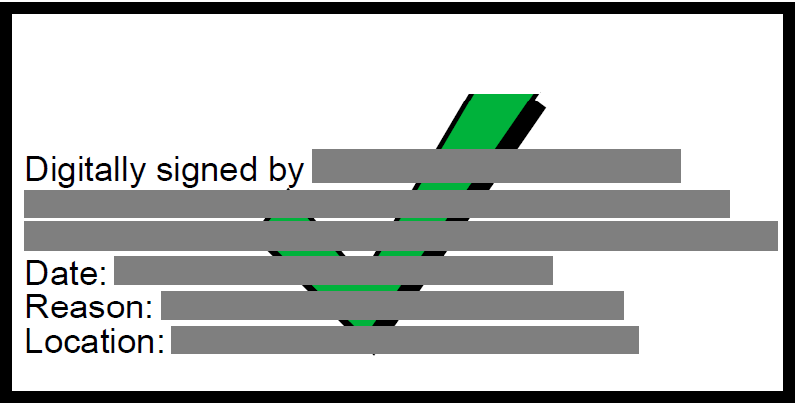
The appearance ATick draws — the signer details with the green tick centred over them:
How Adobe shows it#
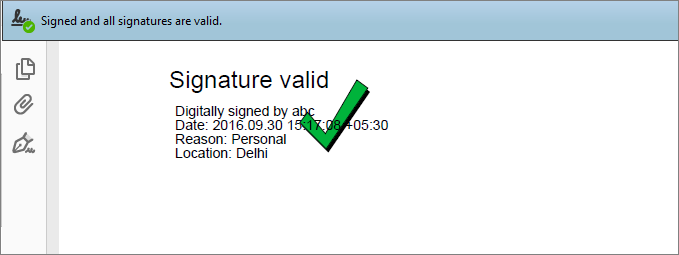
When the certificate is valid and trusted, Adobe Reader / Acrobat reports “Signed and all signatures are valid” and paints the tick green — exactly the reassurance your readers expect:
Every state Adobe can show#
ATick draws the appearance and the mark; Adobe then colours the mark based on the signature’s validity and whether it trusts the certificate, so your reader instantly sees the status:
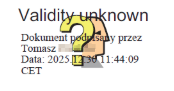
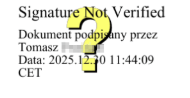
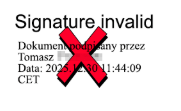
So the green tick appears only when the signature is valid and the signer’s certificate chains to a root Adobe trusts (the Adobe Approved Trust List, or your organisation’s trust). The same ATick appearance shows the question-mark or red-cross state automatically — you don’t draw those; Adobe does.
Colouring the mark#
Colour the mark with a hex string, a CSS colour name, or an [r, g, b] array — or fill it with an
axial gradient:
atick.signPfx(pdf, pfx, JSON.stringify({ cn: "Aniket", green_tick: true, mark_color: "#E53935" }));        // hex
atick.signPfx(pdf, pfx, JSON.stringify({ cn: "Aniket", green_tick: true, mark_color: "blue" }));           // CSS name
atick.signPfx(pdf, pfx, JSON.stringify({ cn: "Aniket", green_tick: true, mark_color: [255, 140, 0] }));    // RGB array
atick.signPfx(pdf, pfx, JSON.stringify({ cn: "Aniket", green_tick: true, mark_gradient: ["red", "orange", "yellow"] }));  // gradient
Use mark_scale to resize the mark relative to the appearance box.
Distinguished name#
atick.signPfx(pdf, pfx, JSON.stringify({
  cn: "Aniket Chaturvedi",
  dn: "CN=Aniket Chaturvedi, O=Personal, C=IN",
}));
The DN is shown directly under the “Digitally Signed by:” line.
Custom-text-only appearance#
Show only your own text — no “Signed by”, no date, no CN structure. Inside body, \n starts a
new line and *word* makes that run bold:
atick.signPfx(pdf, pfx, JSON.stringify({
  body: "*APPROVED*\nReviewed by: *Aniket Chaturvedi*\nThis document is *legally binding*.",
}));
Note
In a JavaScript string literal, \n is a real newline character. JSON.stringify then encodes it
correctly inside the JSON, and ATick reads it as a line break.
Positioning the appearance#
Place the appearance with page + rect, or stamp several positions at once with placements.
Coordinates are PDF points as [x1, y1, x2, y2].
atick.signPfx(pdf, pfx, JSON.stringify({
  cn: "Aniket", green_tick: true, page: 1, rect: [300, 55, 575, 175],
}));

// one stamp per entry: [page, [x1,y1,x2,y2]]
atick.signPfx(pdf, pfx, JSON.stringify({
  cn: "Aniket", green_tick: true,
  placements: [[1, [300, 55, 575, 175]], [2, [300, 55, 575, 175]]],
}));
You can also size the box directly with width and height.
Invisible signature#
A cryptographically valid signature that draws nothing on the page — pass an empty placements
array:
atick.signPfx(pdf, pfx, JSON.stringify({ cn: "Aniket", placements: [] })); // empty placements
Other appearance options#
Key |
Purpose |
|---|---|
|
the heading line at the top of the appearance |
|
extra free text line |
|
organisational-unit line |
|
size of the appearance text |
|
colour of the text |
|
background fill of the box |
|
draw a border around the box |
|
the box size |
|
scale factor for the validity mark |
Errors#
Every failure throws an Error:
try {
  atick.signPfx(pdf, pfx, JSON.stringify({ cn: "Aniket", image: "missing.png" }));
} catch (err) {
  console.log("signing failed: " + err.message);
}